Device web page
Besides the app, every Tinajon Pro device serves its own web page. You open it from the browser of any phone or computer on the same network,with nothing to install, no account and no internet. It lets you see the level, turn the pump on or off and adjust the basics when you don't have the app at hand.
The page itself is in Spanish only for now. This chapter explains what each part does.
How to open it
- Connect your phone or computer to the same WiFi network as the device (your home network, or its own
BombaAgua-XXXXnetwork if you don't use home WiFi). - Find the device's IP address: its screen shows it for a few seconds at power-up, the app shows it under Settings → WiFi network, and you'll also see it in your router's device list. On the device's own network the address is always
192.168.4.1. - Type it in the browser's address bar starting with
http://(for examplehttp://192.168.1.50). Some browsers insist onhttps://; the device doesn't use it, so if it won't open, remove the "s".
Bookmark it or add it to your phone's home screen. If your router changes the device's address, look it up again as above (or ask your router to always give it the same one).
The main page
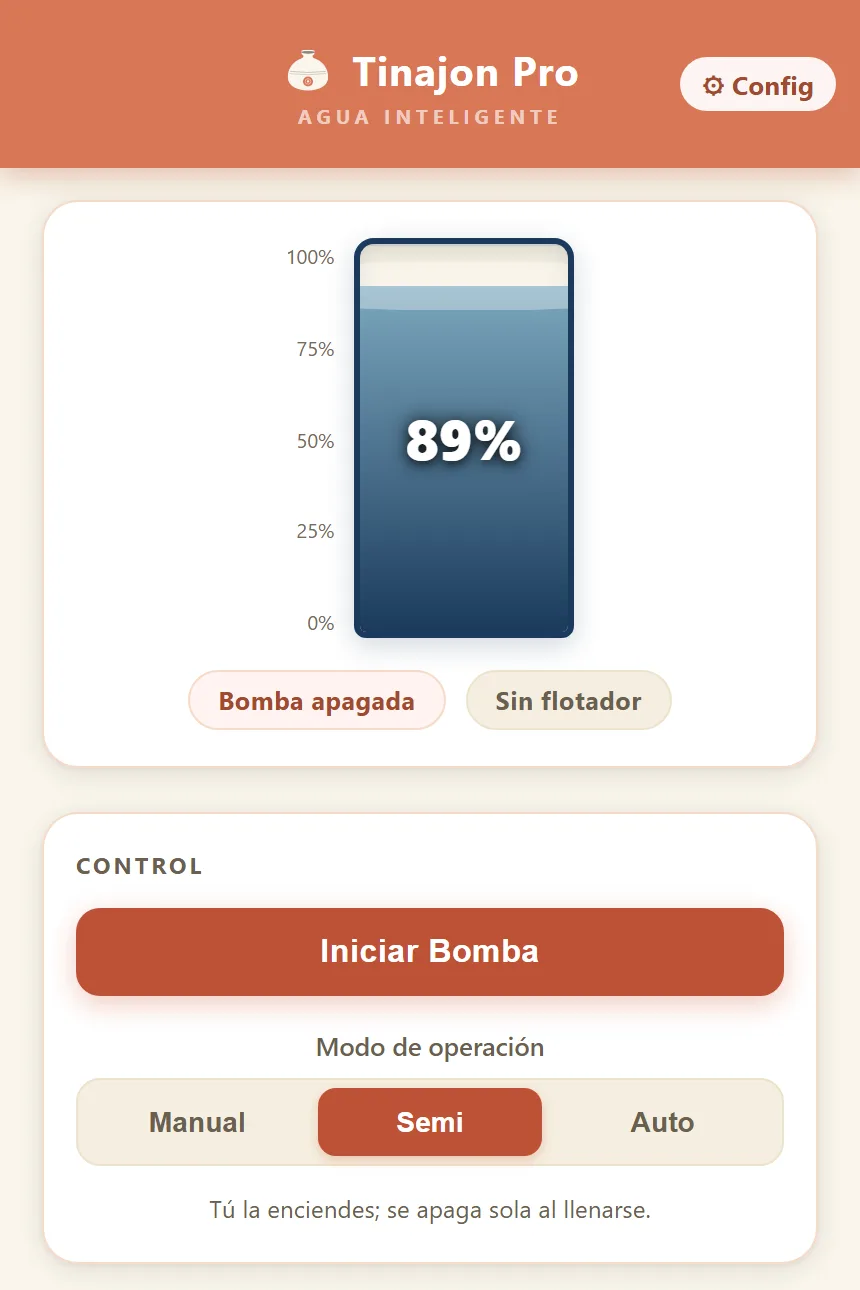
- The tank — the current level as a percentage, live, with no need to reload. Below it, whether the pump is on or off and the cistern sensor status.
- Control — the button to start or stop the pump and the Manual, Semi or Auto mode selector, with a line explaining what each does (the three modes are covered in Daily use).
- Device status — the level at which it starts by itself, what the pump is doing, the network and its signal, how long it has been on, whether it uses the cloud and the firmware version.
- Energy — only on devices with power metering: voltage, current, power and power factor.
- Latest events — the last things the device did. If the pump stopped because of a fault, a notice appears at the top saying what happened and how to acknowledge it.
Settings
The "Config" button at the top right opens the settings, arranged in sections that open one at a time:
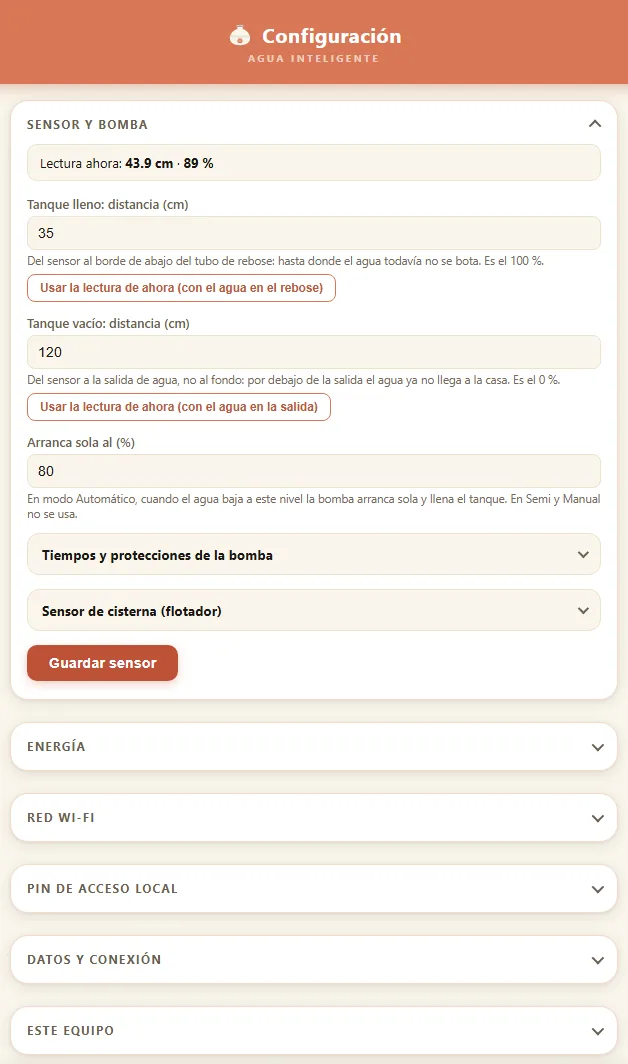
- Sensor and pump — the current sensor reading, the two calibration distances (full tank and empty tank) and the level at which the pump starts by itself in Auto. Each distance has a "Use the current reading" button: fill or empty the tank to the point described in the field, press the button and you're done, no tape measure needed. It also holds the pump timings and protections and the cistern (float) sensor.
- Energy — your installation's voltage and clamp model, on devices with metering.
- WiFi network — which network the device is on and how to change it.
- Local access PIN — set, change or remove the PIN (see below).
- Data and connection — data saver, for connections billed per megabyte.
- This device — version, identifier and other device details, with a button to copy them if you need to ask for help.
- Advanced — uncommon options; the factory values work in almost every case.
Sections with settings have their own save button: nothing is applied until you press it.
The PIN
If you set a local access PIN, the page asks for itonce per browser and remembers it. Without the PIN you can only look: nothing can be turned on or off and no setting can be changed. With no PIN, anyone on your WiFi can control the pump from this page, which is why setting one is a good idea.
What it doesn't do
- It needs no cloud, but it doesn't replace it. There are no blocking schedules, long history, Telegram alerts or control from outside your home here: that goes through the cloud.
- It only works inside the same network. Away from home, without the cloud, it can't be opened.
- It doesn't update the firmware or pair devices: do that with the app.
- It isn't encrypted (it uses
http, nothttps): the PIN and data travel inside your home network. Don't use it from public WiFi, and don't share your WiFi password with anyone who shouldn't control the pump.