Getting started
Pairing your pump takes about 5 minutes. The app guides you the whole way; here is each step in detail so you know exactly what to expect.
Before you start
- The device must be powered on and near you (within a few meters while pairing).
- Turn on your phone's Location (GPS) — Android requires it to scan WiFi networks.
Pair a new pump
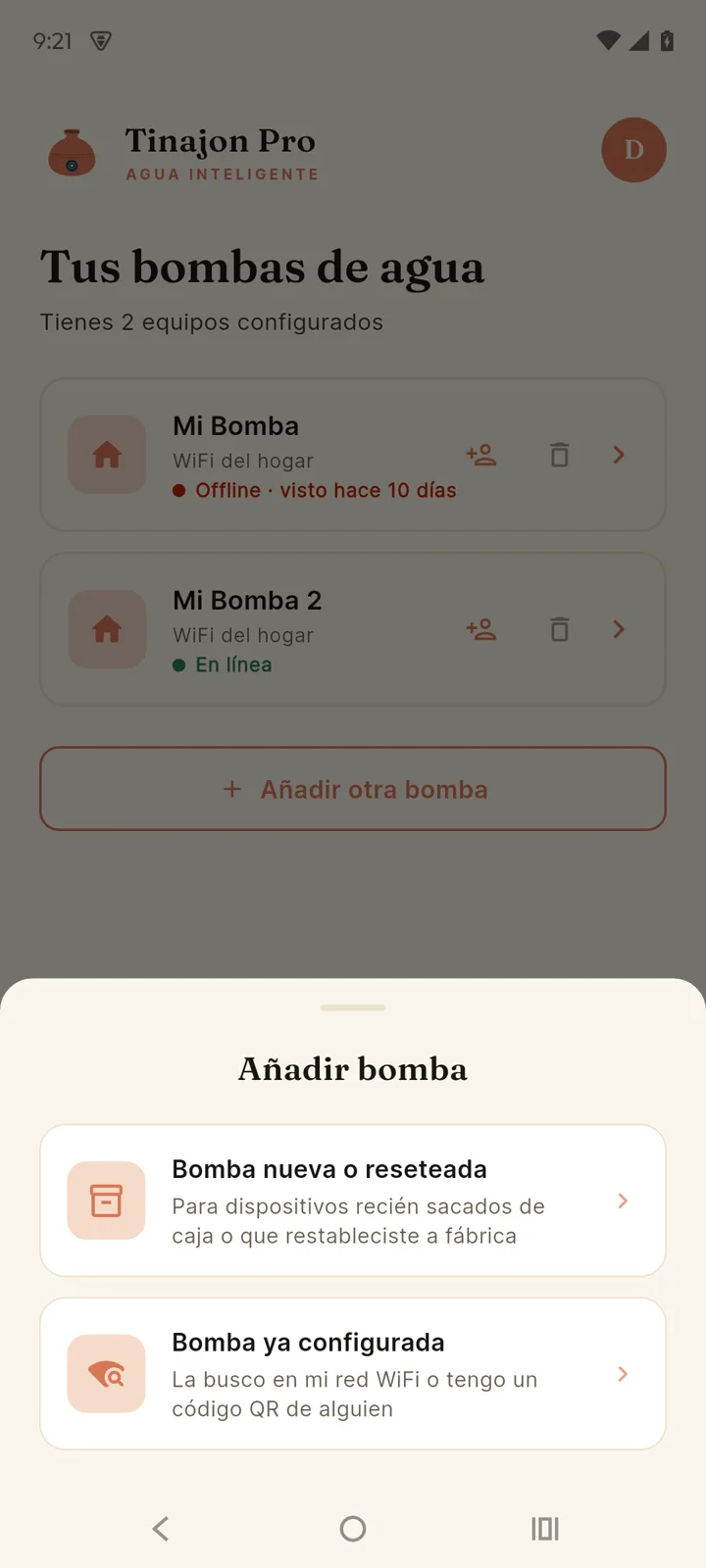
The first time you open the app you'll see the "No pumps configured" screen. Choose "New or reset pump" — the option for devices fresh out of the box or restored to factory settings.
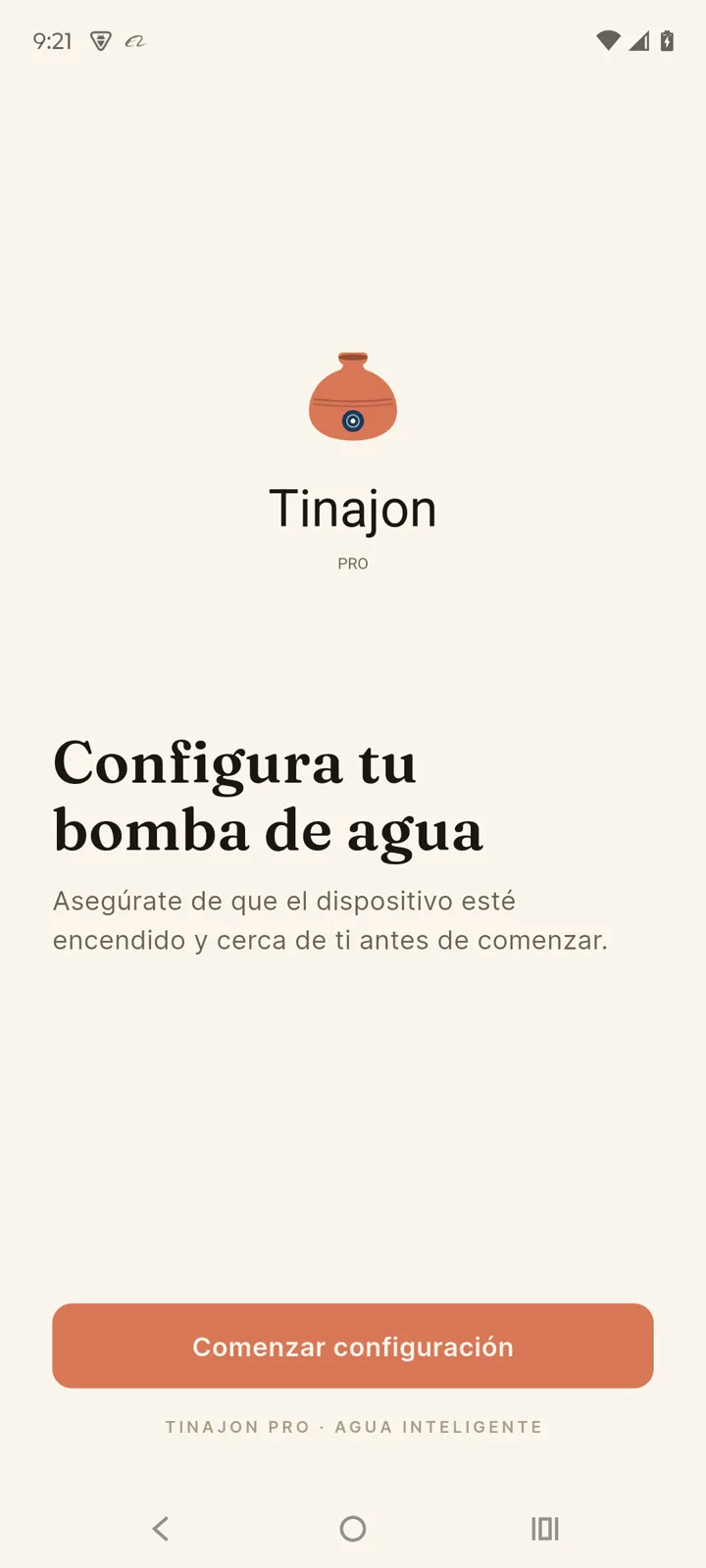
The app looks for the WiFi network the device creates from the factory —BombaAgua-XXXX — and connects by itself. If the automatic connection fails, the app shows you how to do it manually:
- Open your phone's WiFi settings.
- Join the network starting with
BombaAgua-…(you'll see your device's number). - Password:
bomba1234 - Return to the app and tap "I'm already connected to the device".
Choose the connection type
Once connected, the app asks "How will you use your pump?". This choice defines how the system communicates — and you can change it later from Settings.
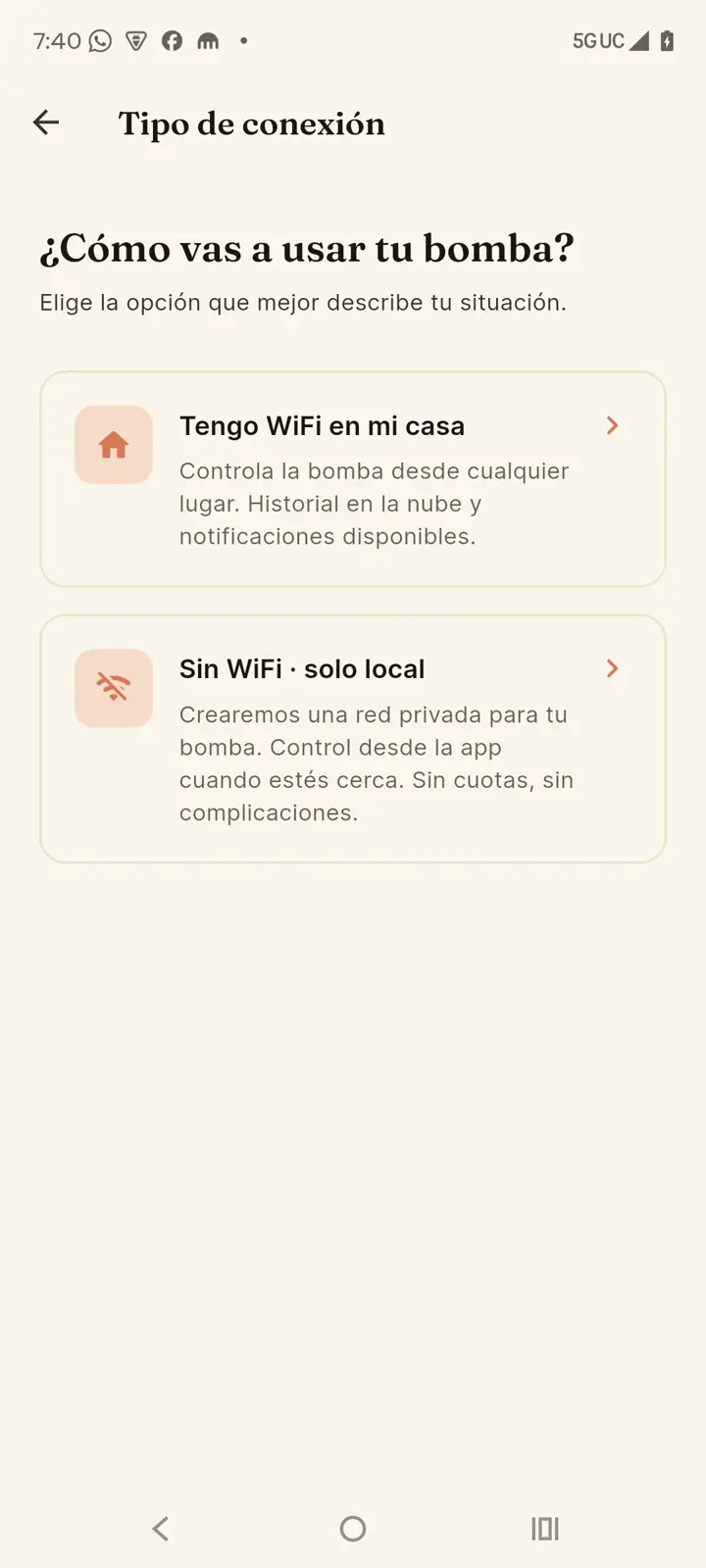
| Option | Best if… | What you get |
|---|---|---|
| I have WiFi at home | You have a working WiFi router (with or without stable internet) | Control from anywhere, cloud history and notifications — whenever there's internet. At home everything keeps working even if the internet goes down. |
| No WiFi · local only | You have no router, or prefer a fully standalone system | The device creates its own private network. Full control from the app when you're nearby, no internet needed. |
Option A — I have WiFi at home
- The app asks the device to scan nearby WiFi networks and shows you the list. Pick yours.
- Type your WiFi password and tap Connect.
- The device restarts and joins your network. The app finds it automatically — you'll see the progress ("Searching for the device on the network…").
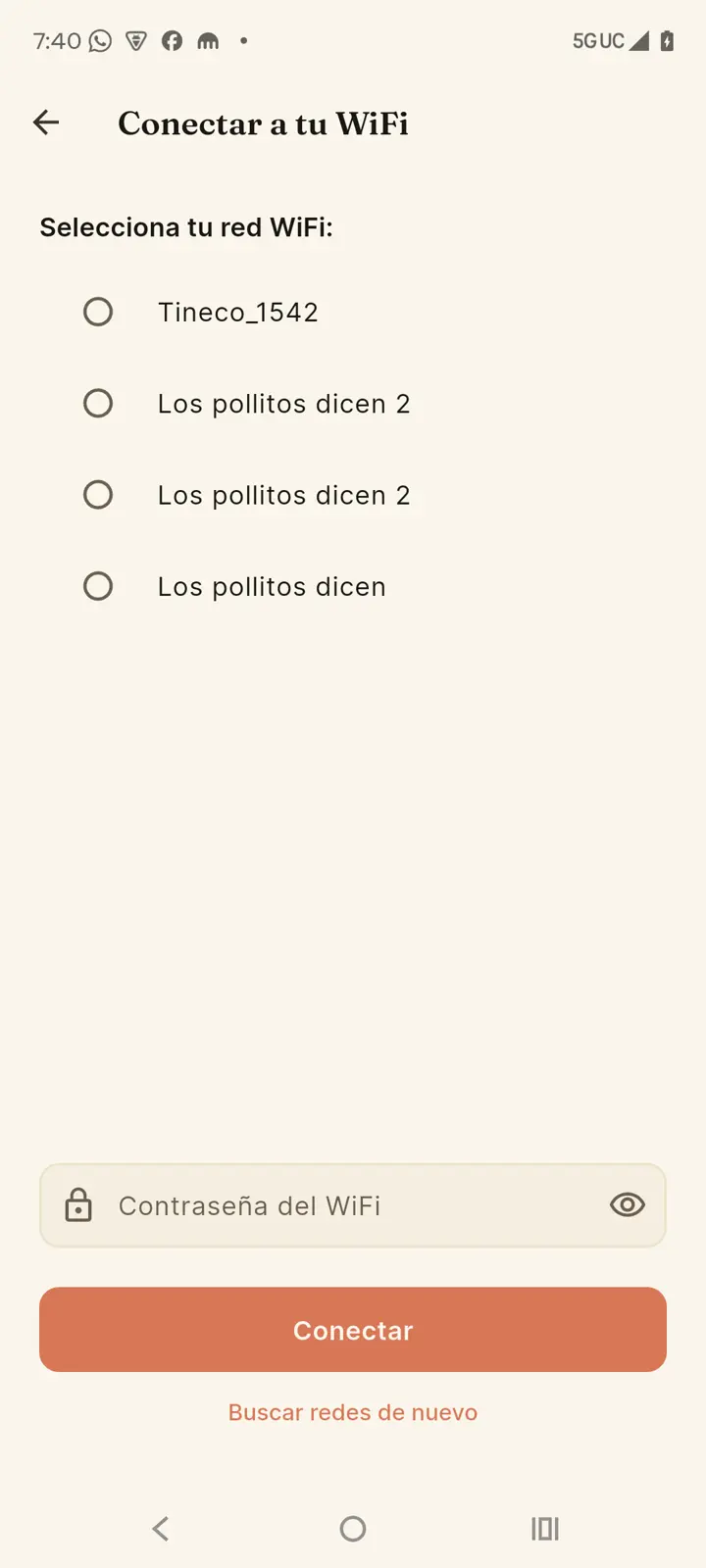
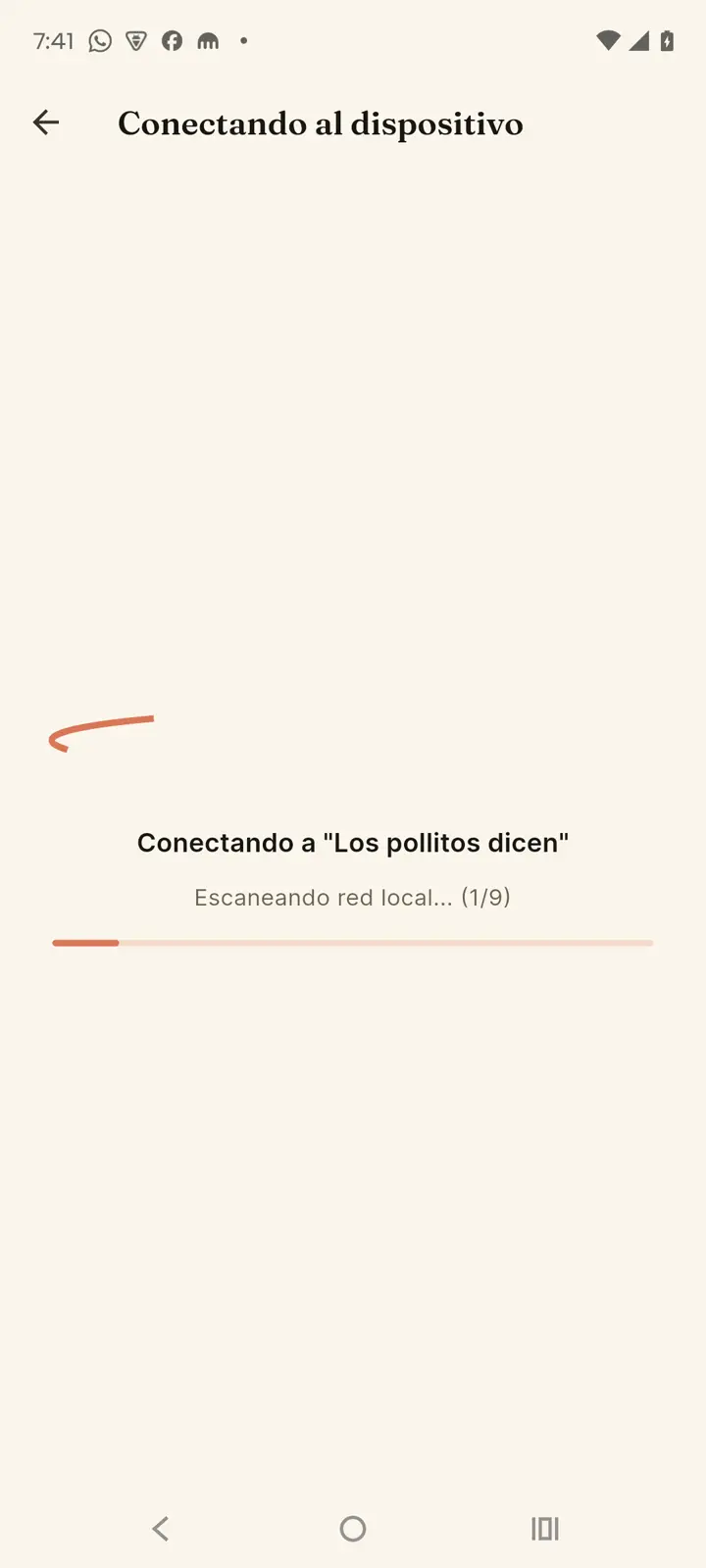
Wrong password? If the device can't join your WiFi, it automatically returns to its own network. The app offers"Reconnect to device (AP)" so you can try again — double-check the password this time.
Option B — No WiFi: create the private network
The device will create its own permanent WiFi network, with the name and password you choose. Your phone connects to that network to control the pump.
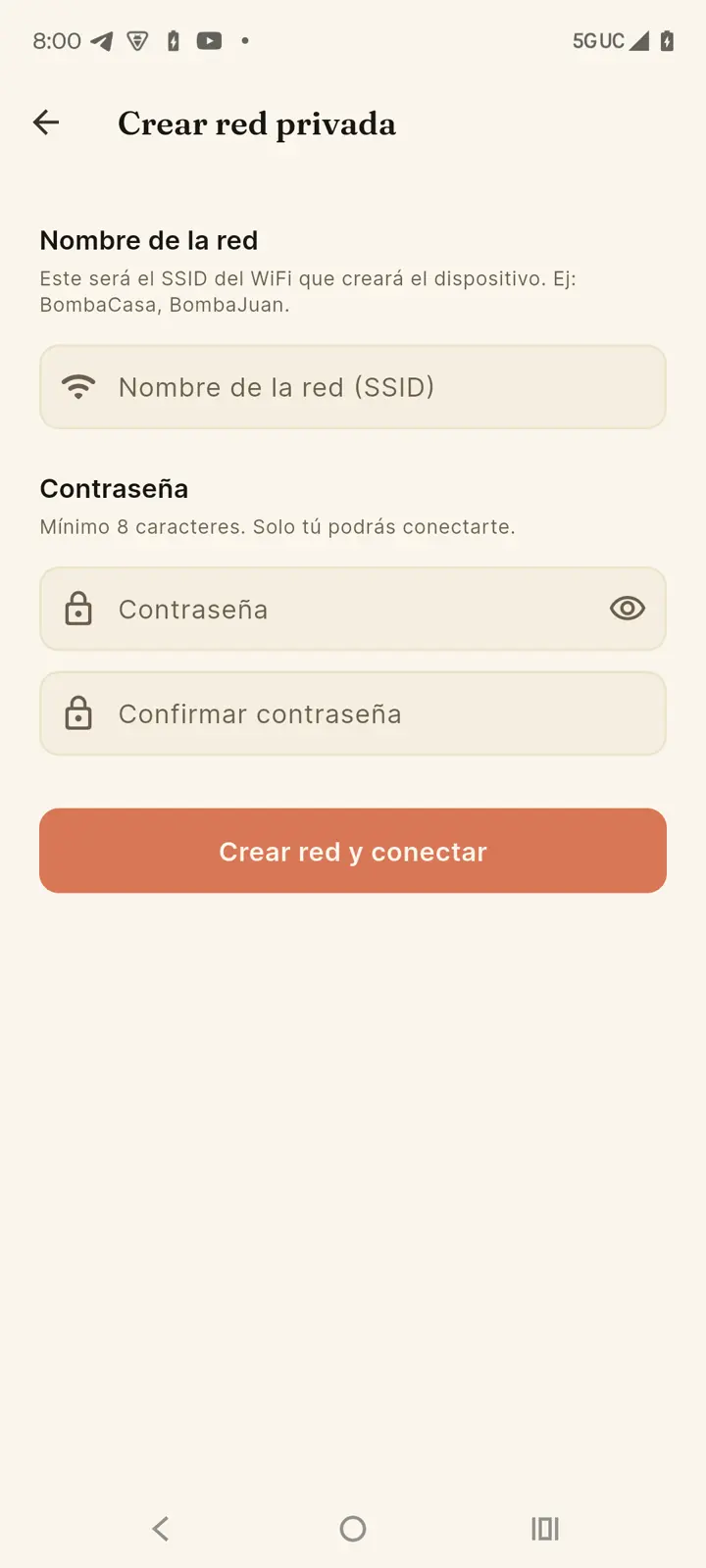
- Pick a network name (SSID) — e.g. BombaCasa or BombaJuan.
- Create a password of at least 8 characters and type it again under "Confirm password". Only people who have it can connect.
- Tap "Create network and connect". The device restarts with the new network and the app reconnects by itself (it can take ~10 seconds).
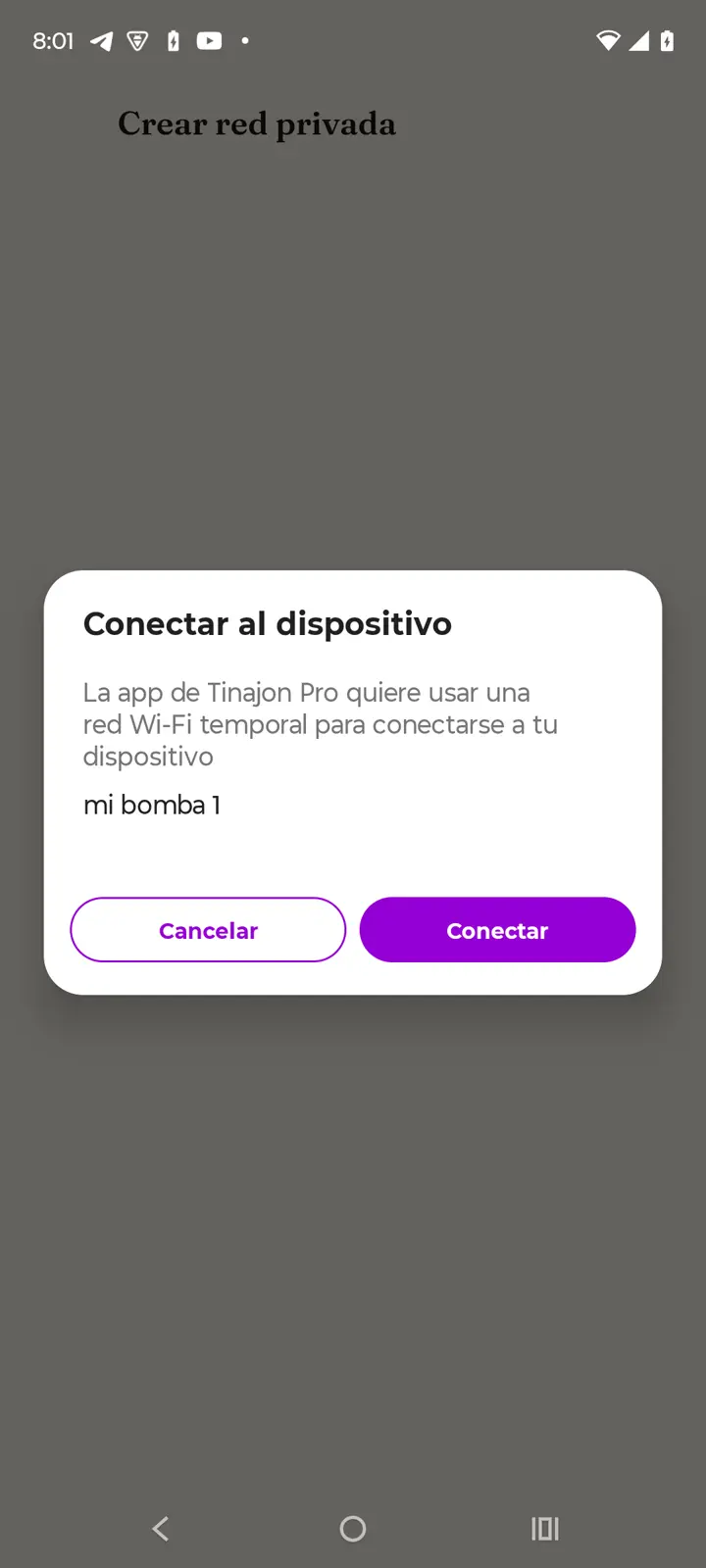
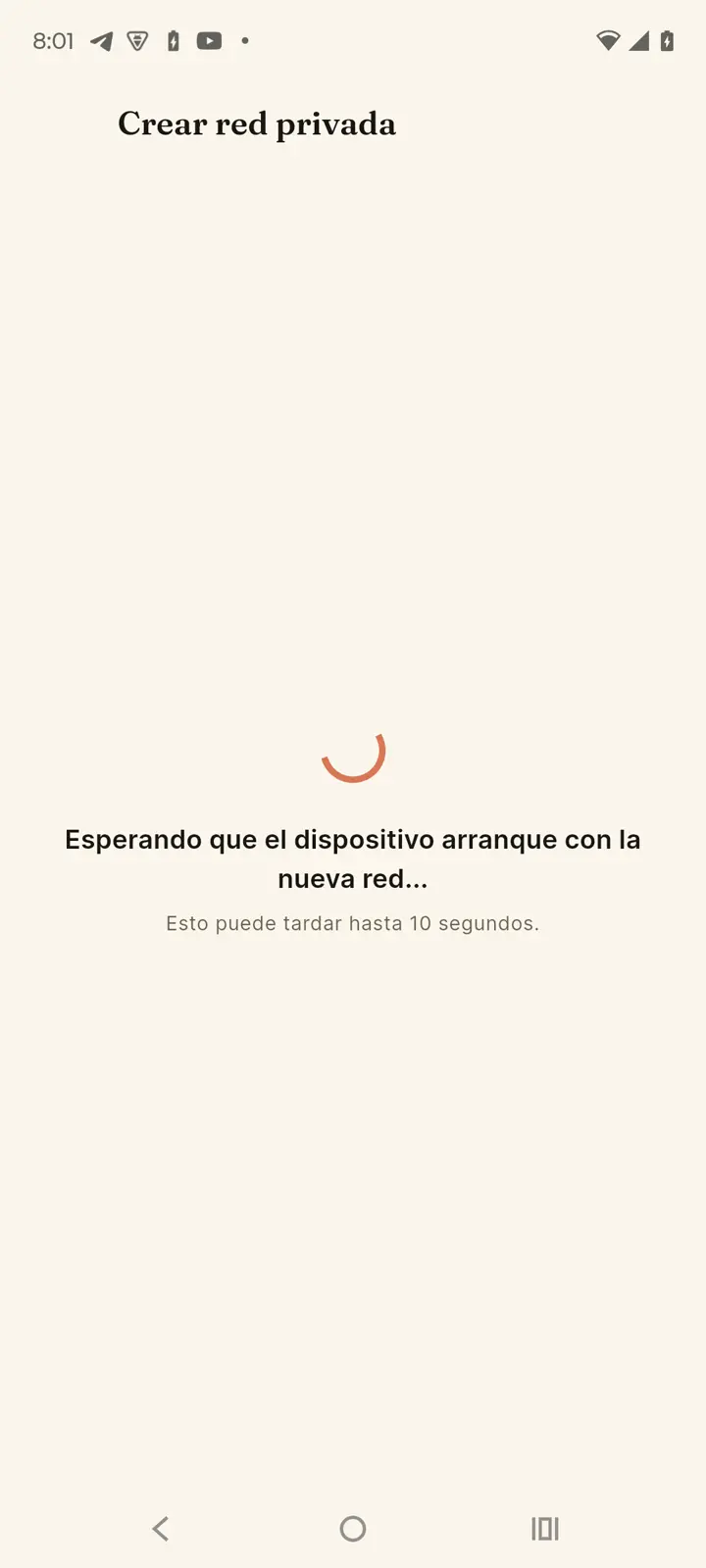
If your phone doesn't rejoin automatically, the app will tell you: go toSettings → WiFi, pick the network you just created, enter your password and come back to the app.
Name your pump
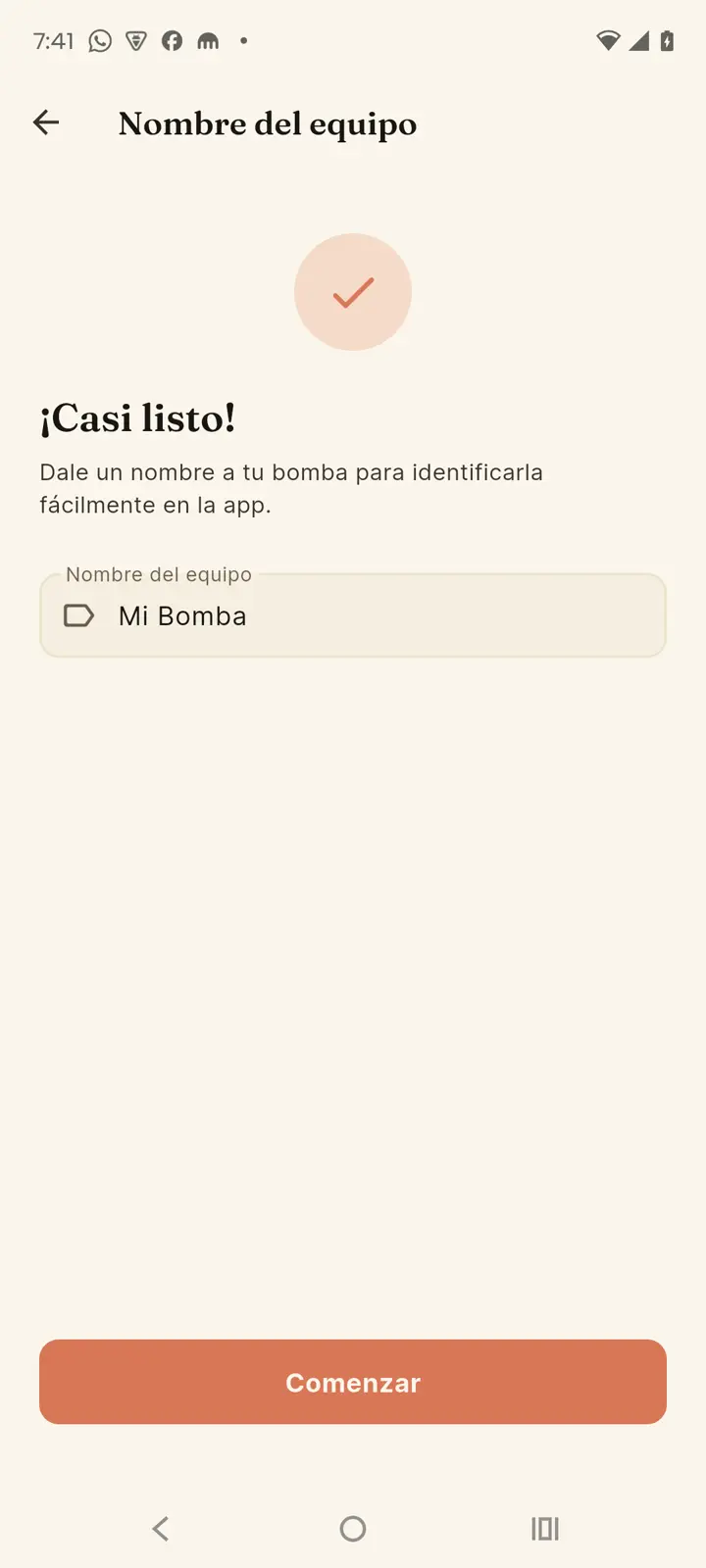
To finish, give the device a name — it makes it easy to identify if you later add more than one. For example: My Pump, Roof Pump,Mom's house.
Calibrate your tank
Right after that, the app opens the "Sensor calibration"wizard. It's what turns the distance the sensor measures into your tank's percentage. All you need is a tape measure: both measurements are taken from outside the tank, without filling or emptying it.
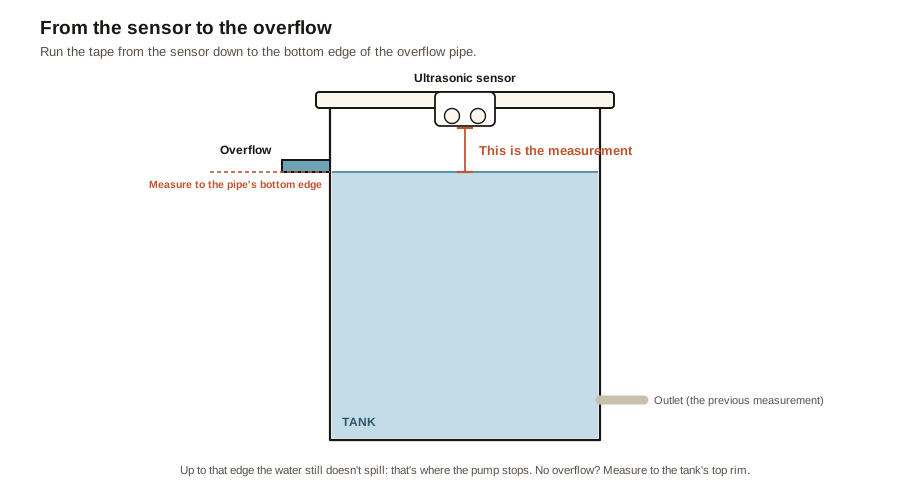
- "How far is it from the sensor to the water outlet?" — run the tape from the sensor down to the height of the pipe the water leaves through towards the house, not to the bottom. That's the 0% mark.
- "And from the sensor to the overflow?" — now down to the bottom edge of the overflow pipe (the top one, where water spills out when the tank is too full), not its center: up to there the water still doesn't spill, and that's where the pump will stop. If your tank has no overflow, measure to the top rim of the tank. If the sensor sits on the lid and you can't measure it, tap "I can't measure it": the pump will stop 30 cm from the sensor.
- If you're connected to the device (over your WiFi or its own network), the app checks with the sensor for a few seconds and shows your tank as it would look: "Does your tank look roughly like this?". If it does, tap "Yes, save". If not, "No, review the measurements" takes you back to the first one with what you typed.
If the check can't be done (with a full tank the water sits too close to the sensor, or you're connected through the cloud), that's fine: the two measurements are enough to save. You can "Skip" the wizard and do it later from Settings → Pump and sensor → "Calibrate again"; until you do, the main screen reminds you and the percentages are approximate.
Connect to the cloud (optional)
If you chose home WiFi, the app offers to enable cloud control with an account:
- Full level and event history
- Telegram and push notifications
- Remote control when you're away from home
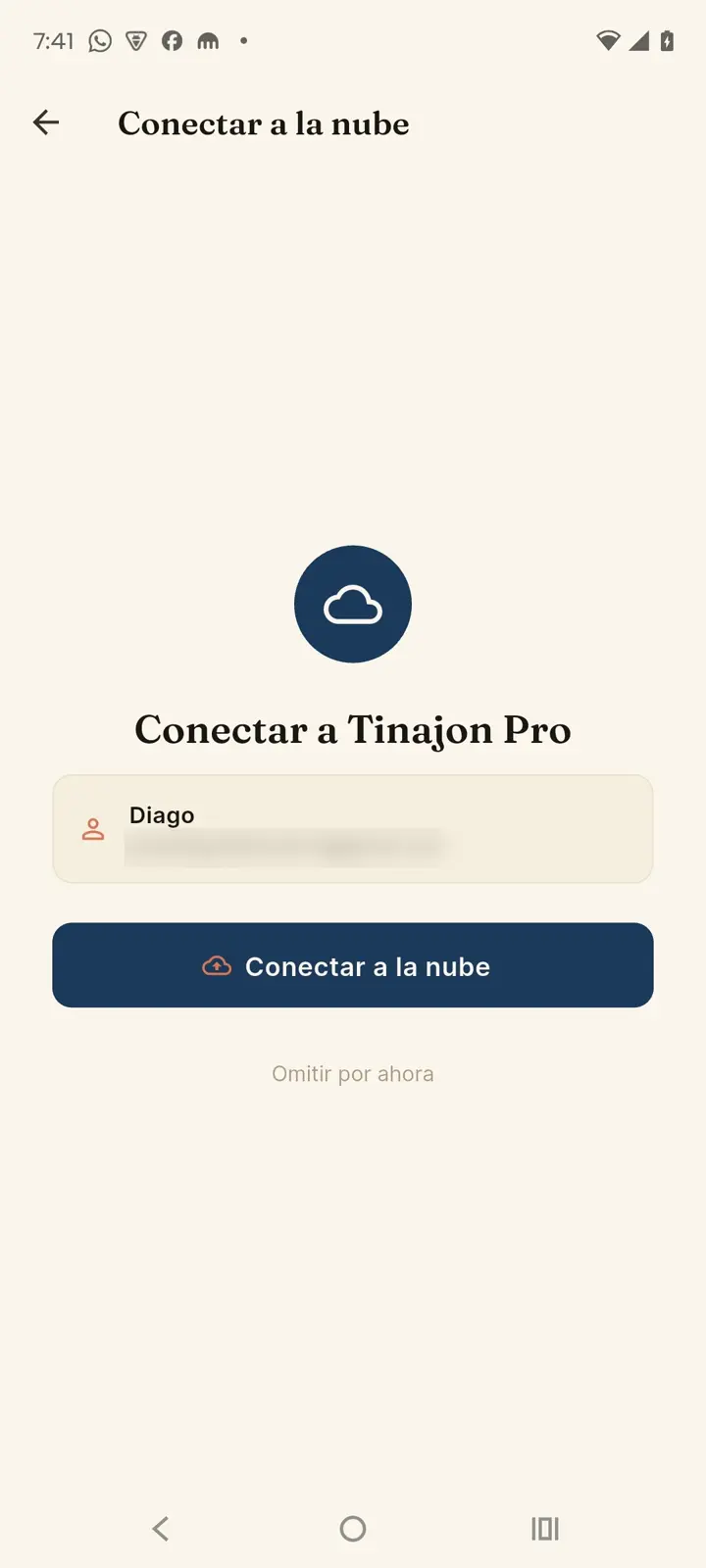
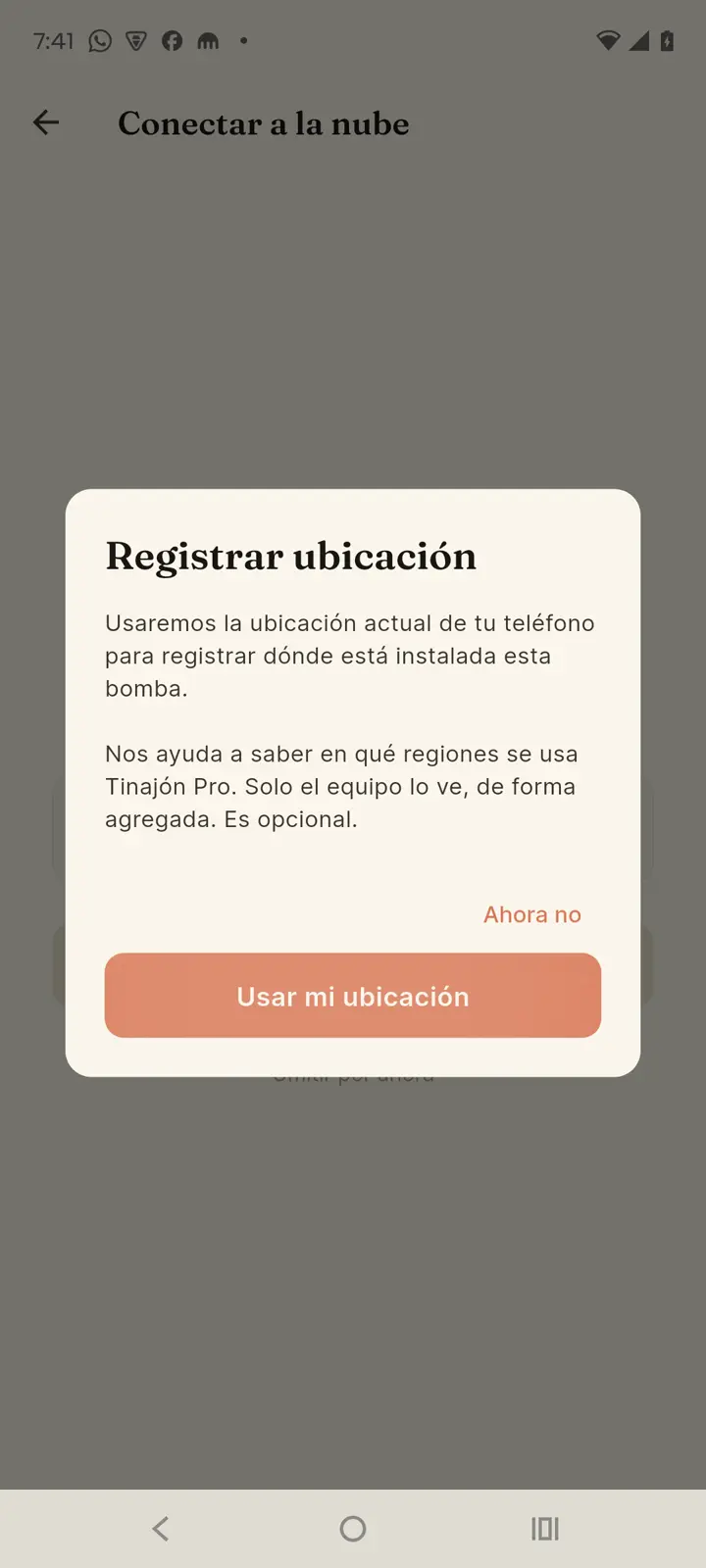
You can tap "Skip for now" and lose nothing: the device works the same, and you can link it to the cloud anytime fromSettings → Sharing and cloud.
Join an already configured pump
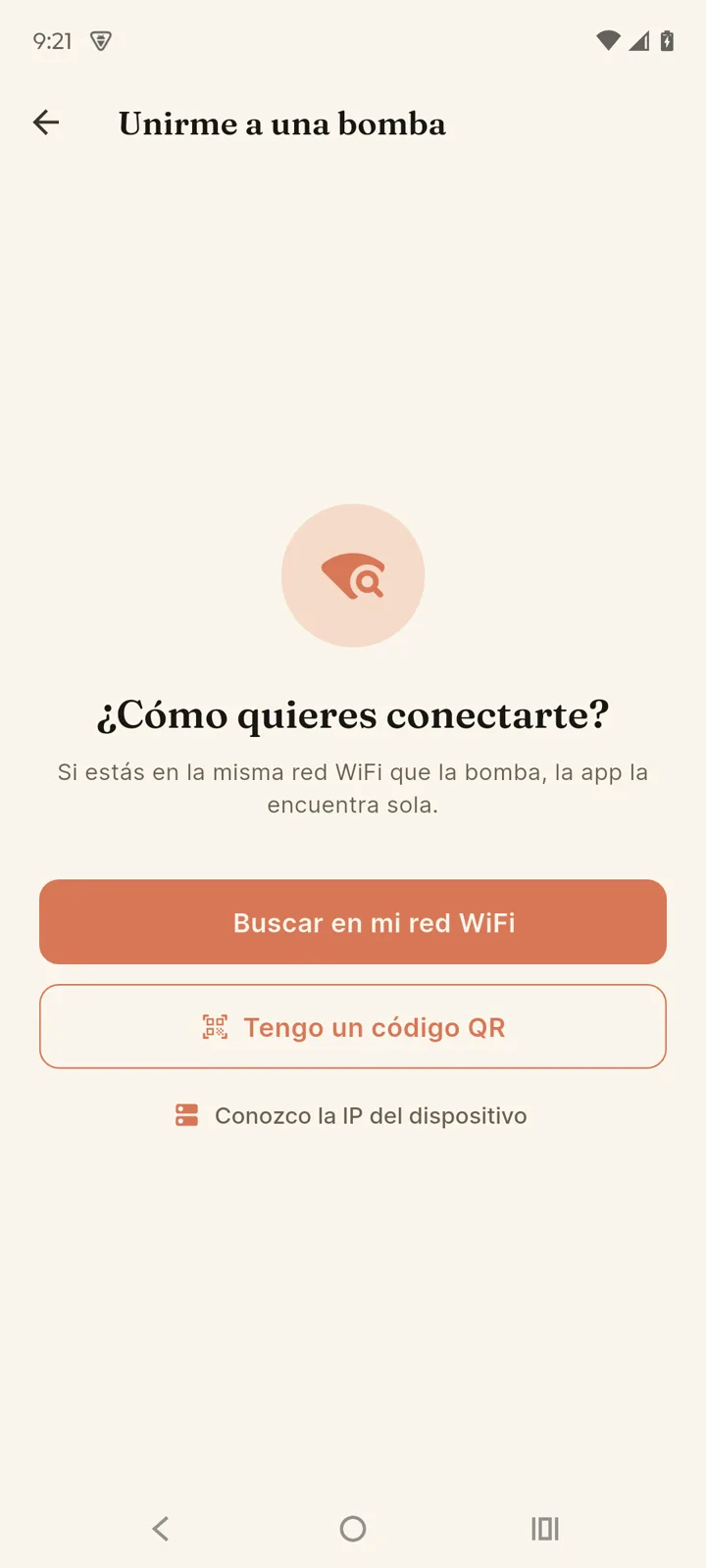
Was the pump set up by someone else (or reinstalled by you)? Choose"Already configured pump" on the start screen. You have three ways in:
| Method | When to use it |
|---|---|
| Search on my WiFi network | You're on the same network as the pump — the app finds it by itself. |
| I have a QR code | The owner shows you the "Share locally" QR from their app; point your camera and you're in. |
| I know the device's IP | For special cases: type the IP directly. The device's screen shows it for a few seconds when it powers on, or you can see it in your router. |
If the owner shares through the cloud (an invite link via WhatsApp or Telegram), just tap it: the app opens and accepts the invitation. More inSharing and cloud.