Daily use
The main screen tells you at a glance how much water you have, what the pump is doing and how you're connected. Here's every element explained.
The main screen
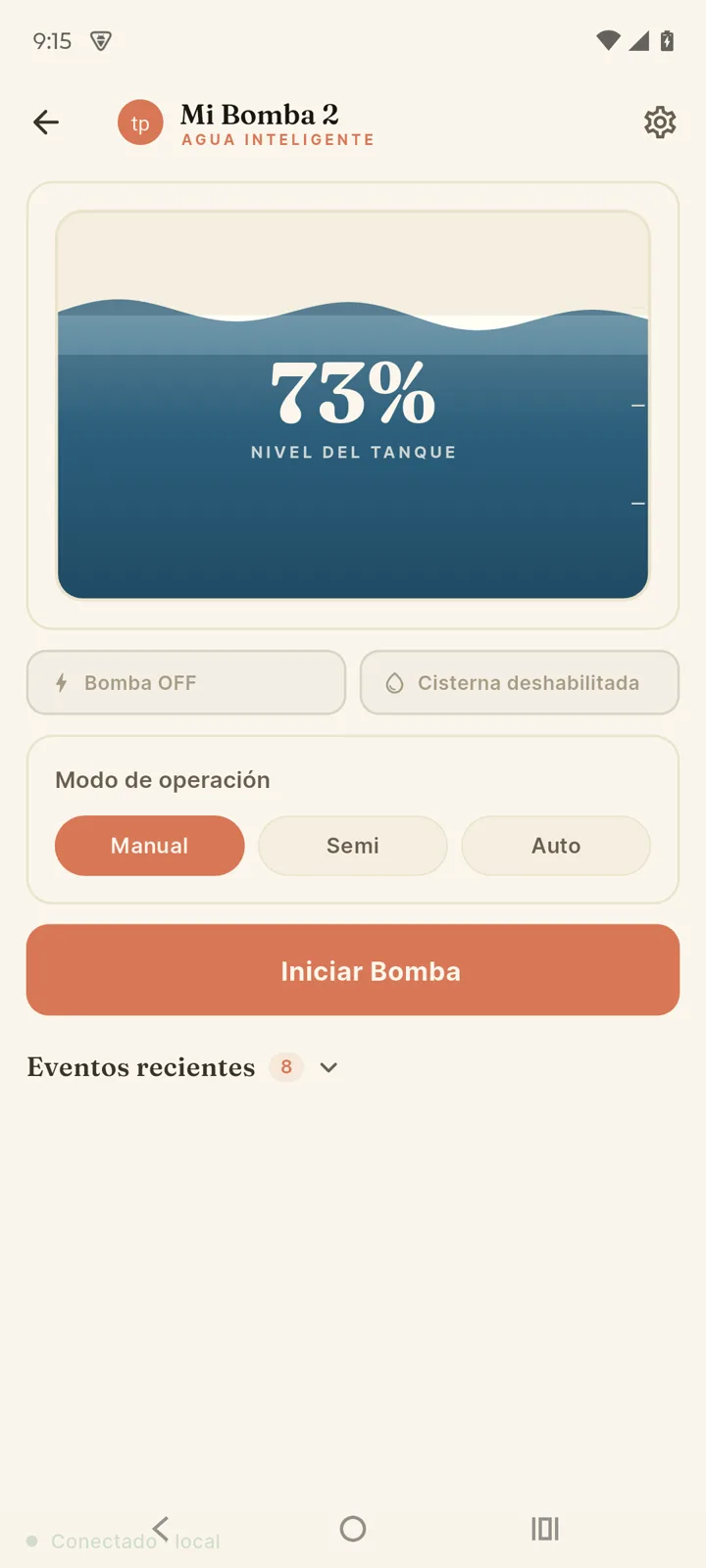
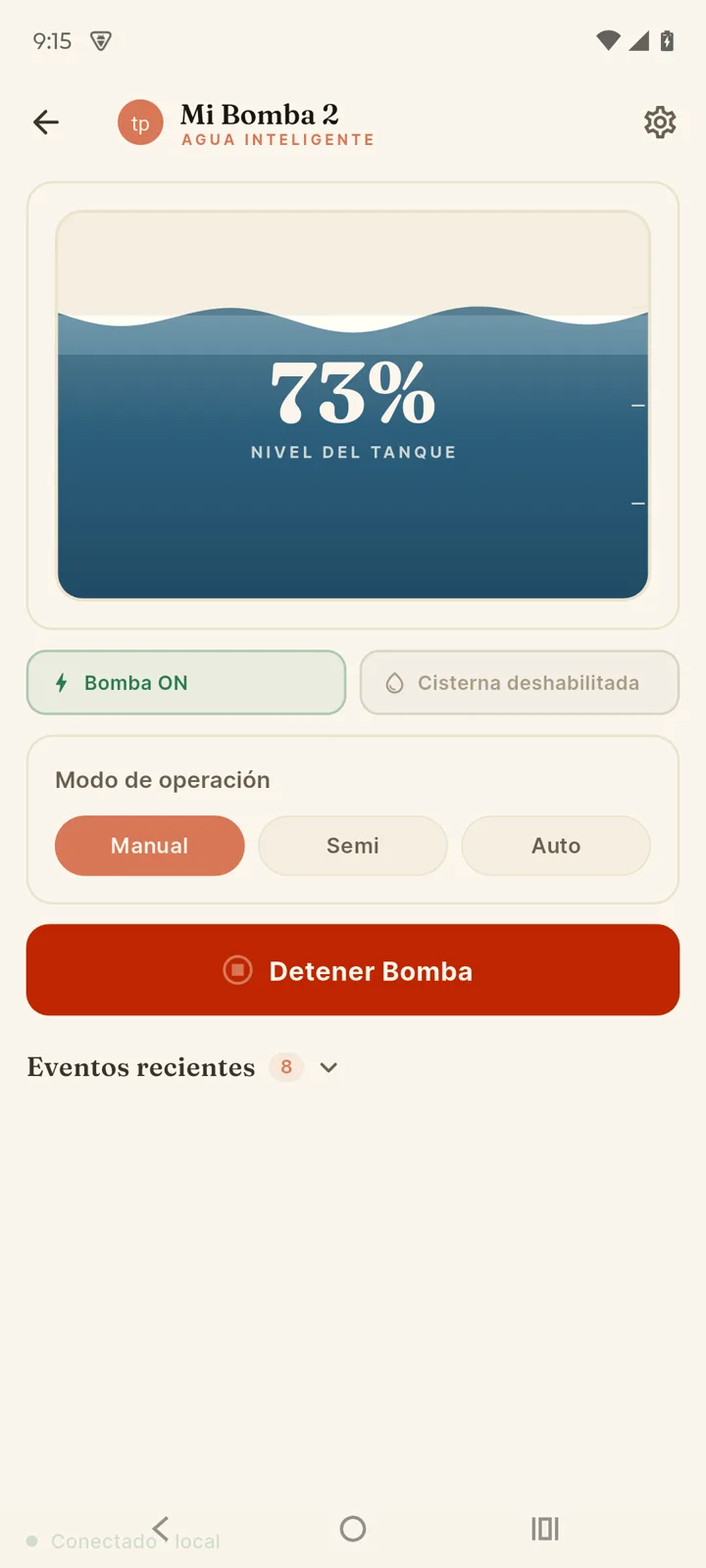
- The tank — the big percentage is the current water level, measured in real time by the ultrasonic sensor.
- Pump on / off — the pump's actual state right now.
- Cistern OK / Cistern empty — if the cistern sensor is enabled, it shows whether the source has water. "Cistern empty" means the pump won't start, to protect it. If you don't use that sensor you'll see "No float".
- Pump fault — the device stopped the pump on its own because something didn't add up. The app just says that much; the device screen names the cause, and so does the history:
SIN FLUJO(no flow) — it was pumping and the level didn't rise at all. Usually dry running, a broken pipe, a closed valve or a faulty sensor.T.MAXIMO(max runtime) — it reached the maximum continuous pumping time you configured without filling the tank. Here the level was rising, it just never got there: check for a leak, a calibration that fell short, or a tank overflowing somewhere else.ELECTRICO(electrical) — only on units that measure current: the pump stopped because of its power draw or an out-of-range voltage.
- Recent events — the device's latest activity; tap "See all →" for the full history.
The connection indicator
| Indicator | Meaning |
|---|---|
| Connected · local | Your phone talks directly to the device over WiFi. Fastest option, no internet needed. |
| Connected · remote | You're controlling the pump over the internet, through the cloud. Normal when you're away from home. |
| Cloud connected · device offline | The cloud works but the device isn't reporting: it may have no power or no internet. The app shows the last known data. |
| No connection | No path to the device. Get closer to its network or check your connection. |
The app always prefers the local connection: at home it talks straight to the device even if you have internet — faster and more reliable.
The three operation modes
The "Operation mode" selector defines who decides when the pump starts and stops:
| Mode | Who starts it | Who stops it | Best for |
|---|---|---|---|
| Auto | The device, when the level drops below your threshold. You can also bring it forward with "Fill to 100%" | The device, at 100% | Forgetting about the tank: always full, no intervention. |
| Semi | You, with "Start pump" | The device, at 100% | Choosing when to pump (e.g. when there's water pressure) with no overflow risk. |
| Manual | You, with "Start Pump" | Only you, with "Stop Pump" | Total control. The pump won't stop by itself even with a full tank. |
In Manual mode the pump never stops by itself. Leave it running with a full tank and water will overflow. The one exception is the cistern: if its sensor is enabled and it runs dry, the device stops the pump anyway, so it doesn't run dry. Use it only when you need that control — for everyday use, Auto or Semi are safer.
If you stop the pump while in Auto, the device switches to Semi.That's deliberate: in Auto it would start again on its own as soon as the minimum pause between starts elapsed, so "Stop" wouldn't have stopped anything. In Semi the pump stays off until you start it, but itkeeps every protection (stops when full, watches the flow, respects the cistern, and stops if the level sensor stops responding). Switch back to automatic from the mode selector whenever you want.
You can also change the mode with the device's physicalMODE button (short press), and switch the pump with START/STOP. The app and the buttons always stay in sync.
Your pump list
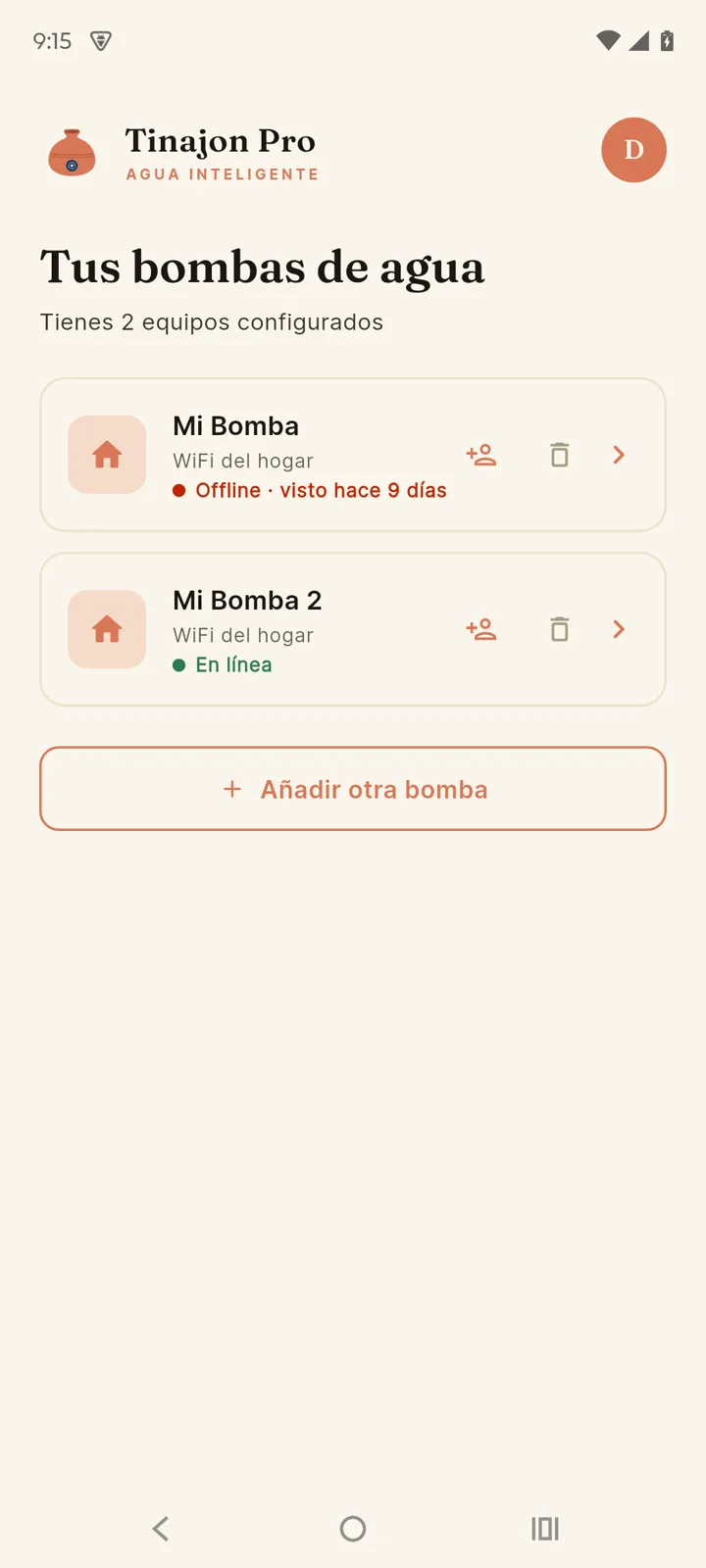
If you have more than one device (or someone shared theirs with you), the"Your water pumps" screen lists them all with their status: online, last seen, and whether it belongs to someone else. Tap any to control it, or "Add another pump" to pair a new one. The pencil icon lets you rename the device right from the list.
Event history
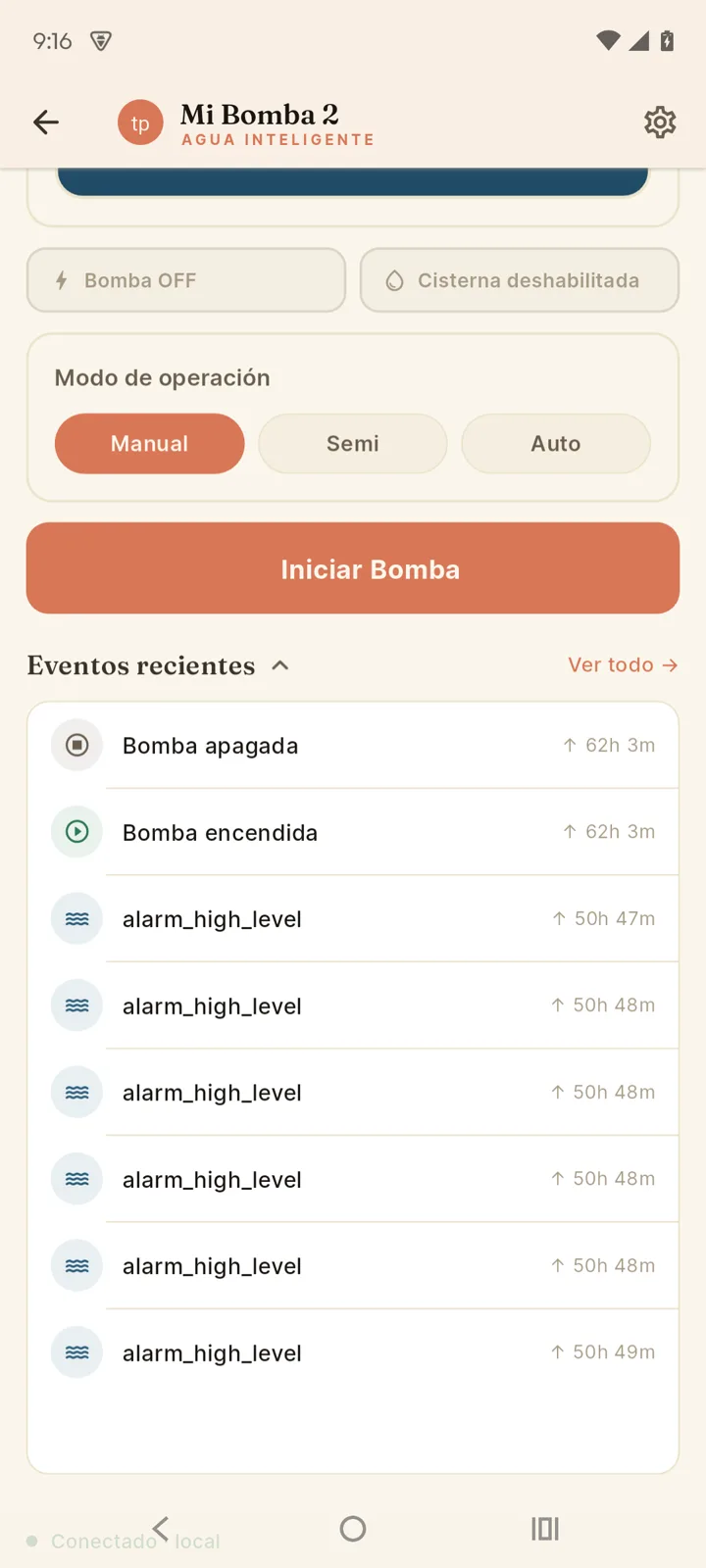
The history records everything the device does. You can filter by category: All · Pump · Alarms · System.
| Event | What it logs |
|---|---|
| Pump on / off | Every start and stop, with the water level at that moment. |
| Low level | The level crossed your configured threshold. |
| Pump fault | A protection stopped the pump: the level wasn't rising, it hit the maximum run time or (on devices with power metering) something electrical was off. The cause is in the event itself and on the device's screen. |
| Fault acknowledged | Someone tapped "Acknowledge fault" and the warning was cleared. |
| Mode change | Someone switched between Auto / Semi / Manual (app or button), or the device switched to Semi after you stopped the pump while in Auto. |
| Settings updated | Configuration changes were saved. |
| Reboot | The device started up (e.g. after a power cut). |
How much history is kept? Without the cloud, you see recent events since the device powered on (they live in its memory). With the device linked to the cloud, the full history is stored permanently and available from anywhere.
Consumption analytics
With the device linked to the cloud, an "Analytics" link shows up next to "Recent events" with statistics on how your pump is being used.
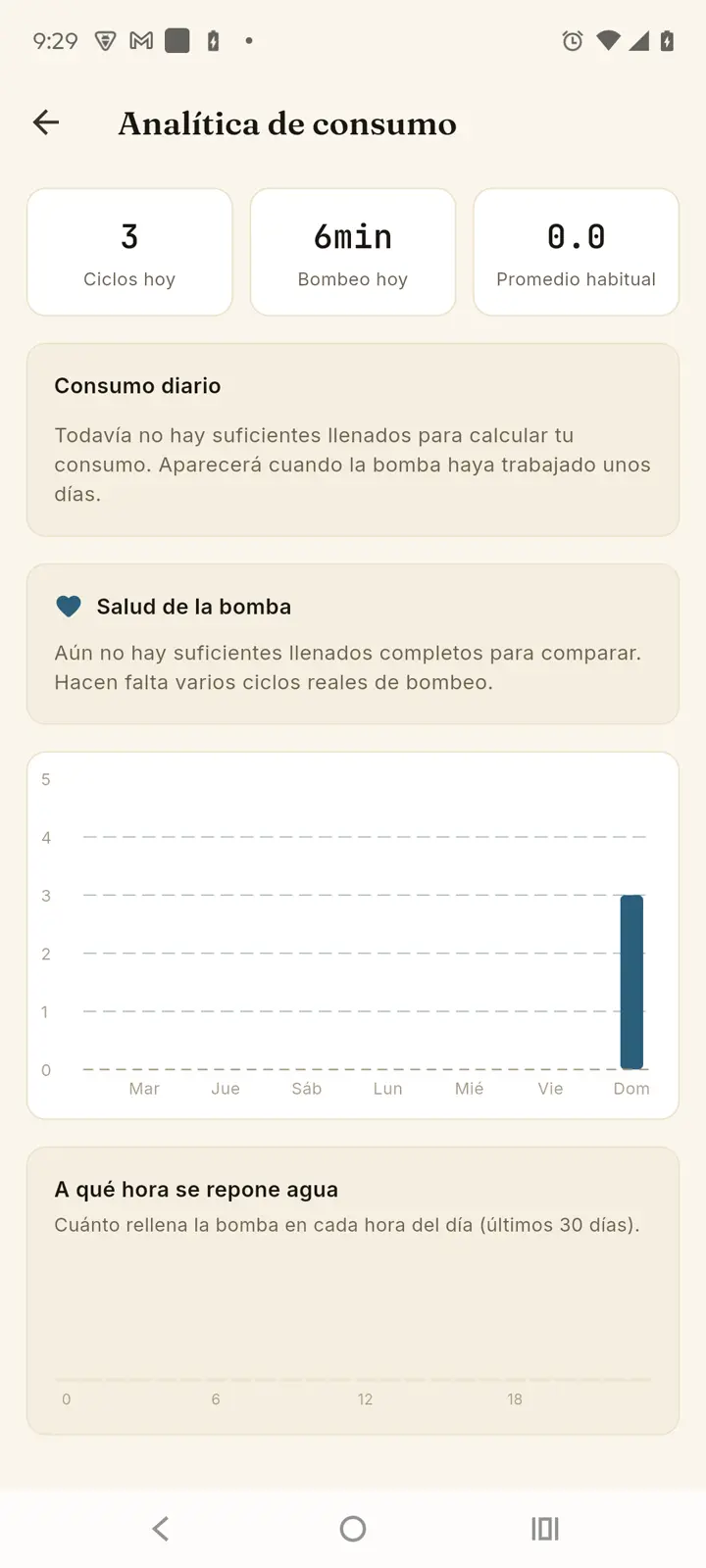
- Starts today / Pumping today — how many times the pump started today and the total time it ran.
- Usual per day — how many times your pump usually starts in a day, calculated from recent history. A reference point for noticing when something's off; it shows "—" until there's history.
- Daily consumption — how much water you use per day. If you set the tank capacity, in liters.
- Starts per day — a bar chart of the last 14 days. The dashed line is what's usual for your pump; days with a possible leak show in red.
- Pump health — compares your recent fill-ups against your history to detect if the pump is taking longer than usual to fill the tank (a possible sign of a leak, a blockage, or a pump losing strength).
- When water gets refilled — what times of day (your phone's time) the pump tends to start, useful for checking whether it lines up with low-pressure hours or peak electricity rates.
These stats need several complete pumping cycles before showing useful data — on a freshly linked device it's normal to see "Not enough fill cycles yet".
Leak detection can also notify you — turn it on underAccount → Notifications → Possible leak.